How to Choose a Touch Screen in 2026?
How do you choose a Touch Screen in 2026? The answer depends less on a feature list and more on where the display will live. A panel beside a sunny shop window faces different demands from one built into a factory console or a kitchen counter. Brightness, viewing angle, surface durability, and touch response all matter. So does the environment.
Start with the task. Will people tap quickly with bare fingers, wear gloves, or use a stylus? Check whether projected capacitive, resistive, or another sensing technology fits that use. Then compare screen size, resolution, interface ports, operating-system support, and mounting options. A larger display is not automatically easier to use. Tiny buttons can still frustrate users.
Look closely at the physical details. Ask about scratch resistance, cleaning guidance, temperature range, and expected service life. If the screen will run for long shifts, request real performance data rather than relying on a product photo. Touch latency is easy to overlook. It is noticeable at the counter.
There is no perfect choice. A low-cost panel may suit a controlled indoor setting, while a brighter, sealed model may be worth the added expense elsewhere. Some specifications are difficult to compare across brands, and marketing language can blur the differences. Verify claims with datasheets, demonstrations, and a trial in the intended setting. This guide explains the key trade-offs, so you can choose a Touch Screen that fits the work—not just the budget. One detail may change everything: the user.
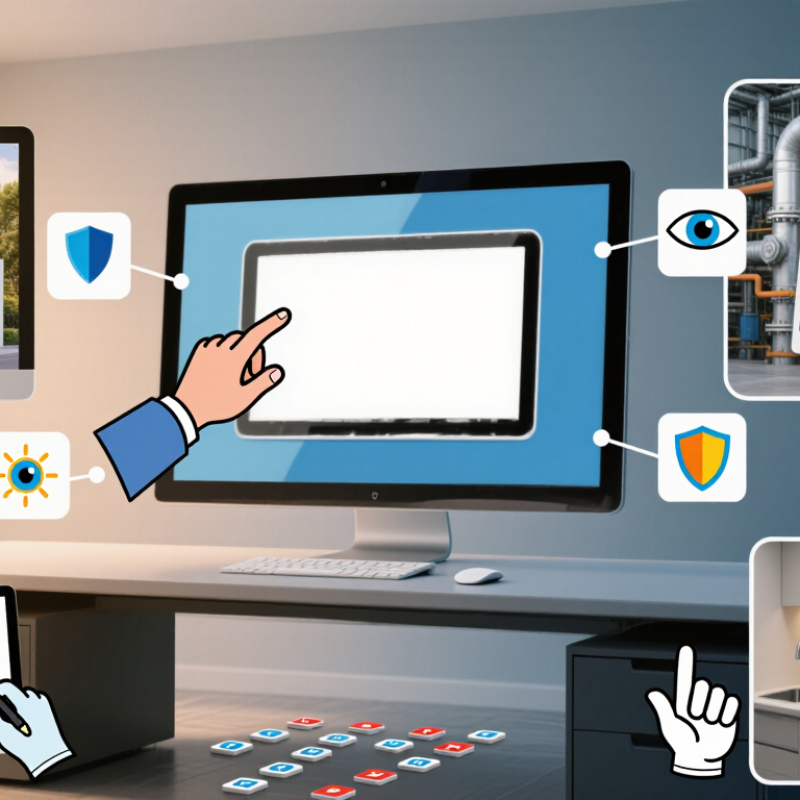
Identify Your Application, Users, and Operating Conditions
Start with the task, not the panel size. Will users enter short codes, inspect maps, or confirm machine status while wearing gloves? A checkout kiosk needs quick, forgiving input; a factory control panel may need large targets and clear feedback. The World Bank’s Global Findex Database 2021 reports that 76% of adults worldwide made or received digital payments. That figure is not touchscreen-specific, but it shows how widely digital transactions reach. Design for varied confidence levels, not just expert users.
Consider who may struggle with the interface. The WHO’s 2022 Global Report on Assistive Technology estimates that 2.5 billion people need one or more assistive products. That is not a touchscreen-use statistic, yet it is a strong reason to test readable text, contrast, and alternative input methods. Small labels can look fine on a desk and disappear under bright shop lighting. Test with real users. Assumptions fail.
Then map the operating conditions: temperature swings, dust, splashing water, vibration, direct sunlight, and cleaning routines. Check the required ingress protection against IEC 60529, and verify performance with the actual gloves, moisture, or protective film in use. A high brightness setting may improve visibility outdoors but increase power use and heat. There is no perfect panel; a short trial in the real installation often reveals what the spec sheet misses.
Compare Touchscreen Technologies and Interaction Methods
How to Choose a Touch Screen in 2026?
Compare Touchscreen Technologies and Interaction Methods
The right screen depends on what hands, tools, and surroundings demand. Projected capacitive panels respond to light finger contact and support crisp multi-touch gestures. They suit kiosks and control panels, but ordinary versions may struggle with thick gloves or wet surfaces.
Resistive screens register pressure instead. A gloved operator can tap one, though the surface may feel less fluid and usually supports fewer simultaneous touches. Infrared frames detect interruptions across the display, allowing varied input tools; dust around the frame can cause trouble. Small details matter.
Interaction design matters as much as the sensor. A checkout screen needs clear, generous targets; a design workstation may need precise stylus input. For a shared factory display, test gloves, screen glare, and accidental palm contact on the actual unit.
Grand View Research estimated the 2023 touchscreen market at about US$74.6 billion, while Fortune Business Insights estimated roughly US$75.4 billion for the same year. Both reports project growth, but their figures vary because market definitions differ. Treat them as context, not proof that one technology is best.
Test real tasks. A neat demo can hide missed taps, awkward reach, or fatigue after ten minutes. One compromise is unavoidable. Choose what fails least often in your environment, then verify it with users before installation.
Evaluate Display Quality, Responsiveness, and Durability
Start with the work the touch screen must do, not the brightest number on a specification sheet. Check whether text stays sharp at your normal viewing distance, and view the display from the sides. A glossy panel may look vivid indoors but reflect a window or ceiling light. Test it in the room where it will be used. If the screen faces strong daylight, compare brightness under those conditions rather than relying on a showroom impression.
Responsiveness is more than a quick tap. Open a drawing app, trace a slow diagonal line, and check whether the cursor follows without gaps or jumps. Try common gestures near the edges, where some interfaces feel less consistent. If users wear gloves, test with the actual glove material; performance varies. Small details matter. A polished demo can still miss the awkward swipe someone makes all day.
Durability depends on the setting. Look for clear information about scratch resistance, moisture protection, operating temperature, and cleaning guidance. Check how the screen is mounted, too: a sturdy panel can still be vulnerable if its edges are exposed. For shared spaces, consider whether fingerprints and smudges are easy to remove without harsh cleaners. No specification predicts every accident, and my own test list would never be complete. Give extra weight to the failures that would disrupt your daily work, then verify those points before buying.
Check Compatibility, Connectivity, and Installation Requirements
A touch screen can look compatible on a desk and still fail once connected. Check the host computer’s operating system, supported resolution, and touch-driver requirements before choosing a panel. Many displays send video through HDMI or DisplayPort, while touch input travels separately over USB. With USB-C, verify that the port supports both video output and data; the connector shape alone proves little.
Test the connection path. Confirm that the computer recognizes the screen as a touch device, not just as a monitor. If you plan to use multiple displays, check whether touch input maps to the correct screen. A quick test with the intended computer can reveal driver issues that a product sheet may not mention. Small mismatch, big headache.
Installation needs equal attention. Measure the usable desk or wall space, including room for cables and ventilation. Check the mounting pattern, screen weight, and whether the stand allows the viewing angle your work requires. In a bright workspace, compare the screen’s brightness and glare handling under actual lighting. For frequent use, test a few taps near the corners; some panels feel responsive in the center but less precise at the edges. I still find cable routing easy to underestimate, especially when a touch cable must reach a computer behind furniture. Don’t assume the supplied cable will fit your setup.
Balance Total Cost, Support, and Expected Lifespan
How to Choose a Touch Screen in 2026?
Balance Total Cost, Support, and Expected Lifespan
A low purchase price can hide costly replacements, installation, calibration, and downtime. Compare the total cost across the screen’s expected service life, not just the invoice. Include spare units, cleaning supplies, and the labor needed to swap a panel. Cheap upfront? Rarely enough. Ask suppliers for documented operating-temperature ranges, touch-cycle tests, and backlight-life estimates. Treat estimates as assumptions, not guarantees.
Support affects the real cost of ownership. Check whether replacement parts will remain available, how quickly technical help responds, and whether repairs require returning the whole unit. Uptime Institute’s 2024 Annual Outage Analysis reported that 54% of surveyed operators said their most recent significant outage cost more than $100,000. That survey concerns data centers, not touch screens, but it shows how interruptions can outweigh hardware savings.
Expected lifespan depends on use. A kiosk in a sunny entrance faces heat, dust, and long daily operating hours; a controlled office does not. Compare warranties, but do not confuse warranty length with useful life. I still find this easy to underestimate: a screen may remain powered on while its touch accuracy deteriorates. Build a simple three- or five-year cost estimate, then test your assumptions against the actual service environment.
How to Choose a Touch Screen in 2026: Balance Total Cost, Support, and Expected Lifespan
Illustrative planning scenarios—not market averages or product quotes. Annualized cost = (purchase price ÷ expected service life) + annual support budget.
How to use this: Compare like-for-like quotes using your own purchase price, support costs, and realistic service-life estimate. Confirm warranty coverage, replacement-part availability, and operating conditions; downtime, installation, taxes, and inflation are not included here.